Using and Grading Discussion Checkpoints
Discussion Checkpoints can be used to define two due dates of activities commonly used in online discussions. For example, many courses require an initial post as well as a number of replies with separate due dates. Checkpoints will allow you to add two due dates to the discussion board.
If you're interested in using Discussion Checkpoints, please note the following:
- Checkpoints can only be used on graded discussions.
- Rubrics added to checkpointed discussions will not auto-populate points for grading (rubrics can still be used but you'll manually need to enter scores in the grading fields).
- If your gradebook has missing or late policies enabled, checkpoints may complicate your grading. Be sure to test how grades may be impacted!
- In the Canvas Student mobile app, Discussion Checkpoint due dates do not display in modules or in student to-do lists (but this is on Instructure's roadmap for development later this year).
- If your course uses DesignPLUS module lists, the checkpoint due dates do not display in the module list (Cidi Labs is aware of this issue and is working on a solution).
Currently you cannot update Discussion Checkpoint due dates using the standard Canvas Bulk Date Editor because the feature hides them from that tool, making individual date changes tedious; however, instructors can manually edit each checkpoint within the discussion settings, with Canvas looking into adding full bulk edit support at a future date.
Instructions
These instructions will focus only on the aspects related to Checkpoints but be sure to edit any other settings (such as the Topic Title, Topic Content, etc.) when you're editing the discussion board.
- In edit mode of a discussion topic, enable the Graded checkbox (in the Options section). Enable the Assign graded checkpoints checkbox.
![1 - Graded [checked], 2 - Assign graded checkpoints [unchecked]](https://s3.amazonaws.com/cdn.freshdesk.com/data/helpdesk/attachments/production/150142565128/original/Qib_xE2RHEdbhjQFrLetp9afRlhZxWNwMQ.png?1765914431)
- Scroll down to the Checkpoints Settingssection and update the following settings:
- Points Possible: Reply to Topic (this will be the points possible for the "initial post")
- Additional Replies Required (this refers to the minimum number of reply posts; allows up to 10)
- Points Possible: Additional Replies (this will be the total number of points possible for any reply posts). Confirm the Total Points Possible is equal to the total points possible you want for the assignment (this is an automatic sum of the points possible fields).
This will add an area where you can assign points to the initial post (“Reply to Topic”) [1], the number of required replies (up to ten) [2], and points to the additional replies [3]. The point values for “Reply to Topic” and “Additional Replies” are automatically totaled [4].
Note: You must include points in [1] and [3], even if Complete/Incomplete grading is being used. In that case, it is recommended to assign 0 points to both. When grading the discussion, it will only be considered Complete if both scores are Complete, no matter the point values configured here.![Checkpoint Settings, Points Possible: Reply to Topic [1], Additional Replies Required [2], Points Possible: Additional Replies [3], Total Points Possible [4]](https://s3.amazonaws.com/cdn.freshdesk.com/data/helpdesk/attachments/production/150142565127/original/CtI8NmNvKmKnkpgblSfQHZWgJizYe4iZBA.png?1765914431)
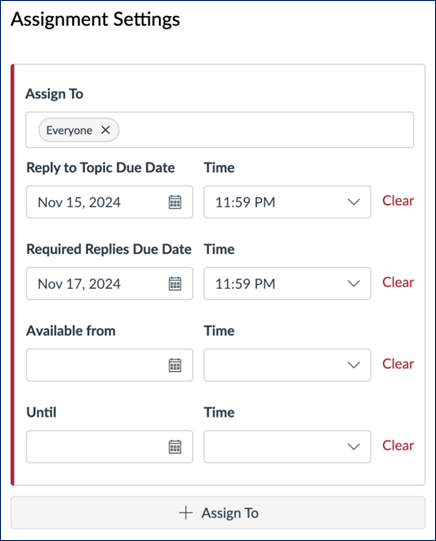
- Under Assignment Settings, enter due dates and times for Reply to Topic Due Date (initial post) and Required Replies Due Date (reply posts). The “Assign To” section works as usual, meaning you can have different due dates for different students or sections.
- Once all edits to the discussion topic are done, select either the Save or Save and Publish buttons.
How-to Grade a Discussion with Checkpoints in SpeedGrader
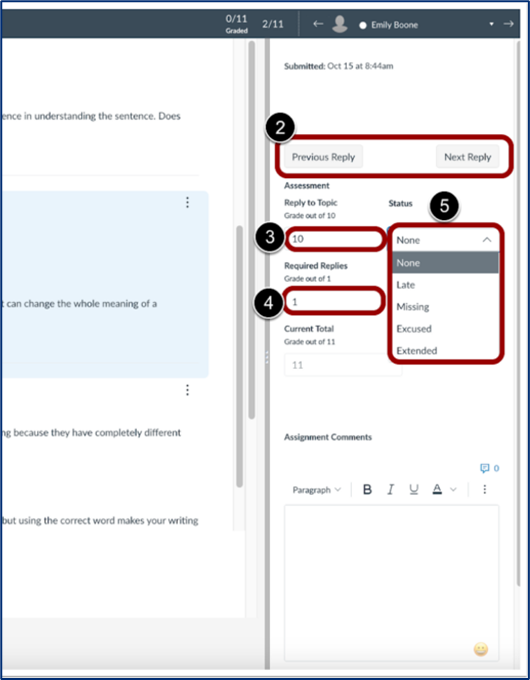
In SpeedGrader, the individual post is highlighted [1], for easy identification. Instructors can navigate between responses using the Previous and Next Reply buttons [2]. Separate fields are provided to enter grades for both the individual response [3] and additional replies [4]. Additionally, instructors have the option to update the status for each reply field [5]. Replies display in chronological order.
- Reply to Topic: Here you can enter points for the reply to topic/initial post and mark the status as late, missing, excused, or extended (if needed) in the drop-down menu.
- Required Replies: Here you can enter points for the required replies/responses to others in the discussion board and optionally mark the status as late, missing, excused, or extended (if needed) in the drop-down menu.
- Current Total: The current total will automatically update based on points entered in "Reply to Topic" and "Required Replies" fields.
- View Rubric button: If a rubric is used for grading the discussion, you'll note the button to expand the rubric to use it and enter comments within the rubric. Be aware, however, of the alert below the button stating that rubrics will not auto-populate grades for checkpoints--so you must remember to enter the total in the Current Total field (separate from the rubric)!
The points for initial post and required replies are then totaled automatically. You still only have one comments box, and the discussion will only show as one column in the Canvas Gradebook.
Was this article helpful?
That’s Great!
Thank you for your feedback
Sorry! We couldn't be helpful
Thank you for your feedback
Feedback sent
We appreciate your effort and will try to fix the article