Gradebook and Assignments
The Canvas Gradebook corresponds to the Assignments page in the course. Gradebook columns automatically appear when a graded assignment is created. To delete a Gradebook column, navigate to the Assignments page and delete the assignment.
It is important to ensure the points or percentages set for each assignment are consistent with the points or percentages listed in the syllabus!How to Set Up a Total Points Gradebook in Canvas
Canvas can calculate final grades using total points earned ÷ total points possible. Follow the steps below to ensure your course uses Total Points instead of weighted assignment groups.
Step 1: Open the Assignments Page
- Enter your Canvas course.
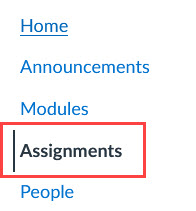
- Click Assignments in the course navigation menu.
✅ Canvas controls grade calculations from the Assignments area, not the Gradebook.
Step 2: Disable Weighted Assignment Groups
- On the Assignments page, click the three dots (⋮) in the top-right corner.
- Select Assignment Groups Weight.
- Uncheck the box labeled
“Weight final grade based on assignment groups.” - Click Save.
✅ When this box is unchecked, Canvas automatically calculates grades using total points.
Step 3: Create Assignment Groups (Optional but Recommended)
Assignment groups help organize work but do not affect grades when weighting is turned off.
- On the Assignments page, click + Group.
- Name the group (e.g., Homework, Quizzes, Exams).
- Click Save.
- Repeat as needed.
Tip: Even without weighting, groups help instructors and students understand course structure.
Step 4: Create Assignments With Point Values
- Click + Assignment (or open an existing assignment).
- Enter the assignment name.
- In the Points field, enter the total points possible (e.g., 50, 100).
- Select the appropriate Assignment Group.
- Choose a Display Grade as option (Points is recommended).
- Click Save & Publish.
✅ Canvas adds these points to the course total automatically.
Step 5: Verify Total Points
- Stay on the Assignments page.
- Look at the bottom of the page.
- You’ll see Total: XXX points showing the sum of all published assignments.
⚠️ Note: Unpublished assignments do not count toward total points.
Step 6: Check the Gradebook
- Click Grades in the course navigation.
- Confirm:
- Assignment columns show point values.
- The Total column reflects total points earned.
- Final grades are based on points, not percentages by group.
Common Mistakes to Avoid
- ❌ Leaving assignment group weighting enabled
- ❌ Forgetting to publish assignments
- ❌ Mixing weighted and total-point logic
- ❌ Using “No Submission” or “Not Graded” unintentionally
Quick Checklist ✅
- Assignment group weighting is OFF
- All assignments have point values
- Assignments are published
- Total points appear on the Assignments page
- Gradebook Total column reflects points
Was this article helpful?
That’s Great!
Thank you for your feedback
Sorry! We couldn't be helpful
Thank you for your feedback
Feedback sent
We appreciate your effort and will try to fix the article