The article provides information on ensuring the Canvas gradebook is set up properly at the start of the term.
TABLE OF CONTENTS
- Gradebook and Assignments
- Assignment Groups and Weighted Grades
- Canvas Grade Posting Policy
- Student Grade Summary
Gradebook and Assignments
The Canvas gradebook corresponds to the Assignments page in the course. Gradebook columns automatically appear when a graded assignment is created. To delete a gradebook column, navigate to the Assignments page and delete the assignment.
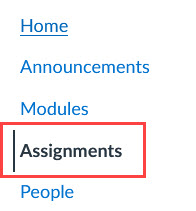
It is important to ensure the points or percentages set for each assignment are consistent with the points or percentages listed in the syllabus!Assignment Groups and Weighted Grades
Assignment groups help organize and categorize assignments into groups that can then be given weights. Assignment groups and weights should be set prior to the start of the term so that student submissions are graded properly.
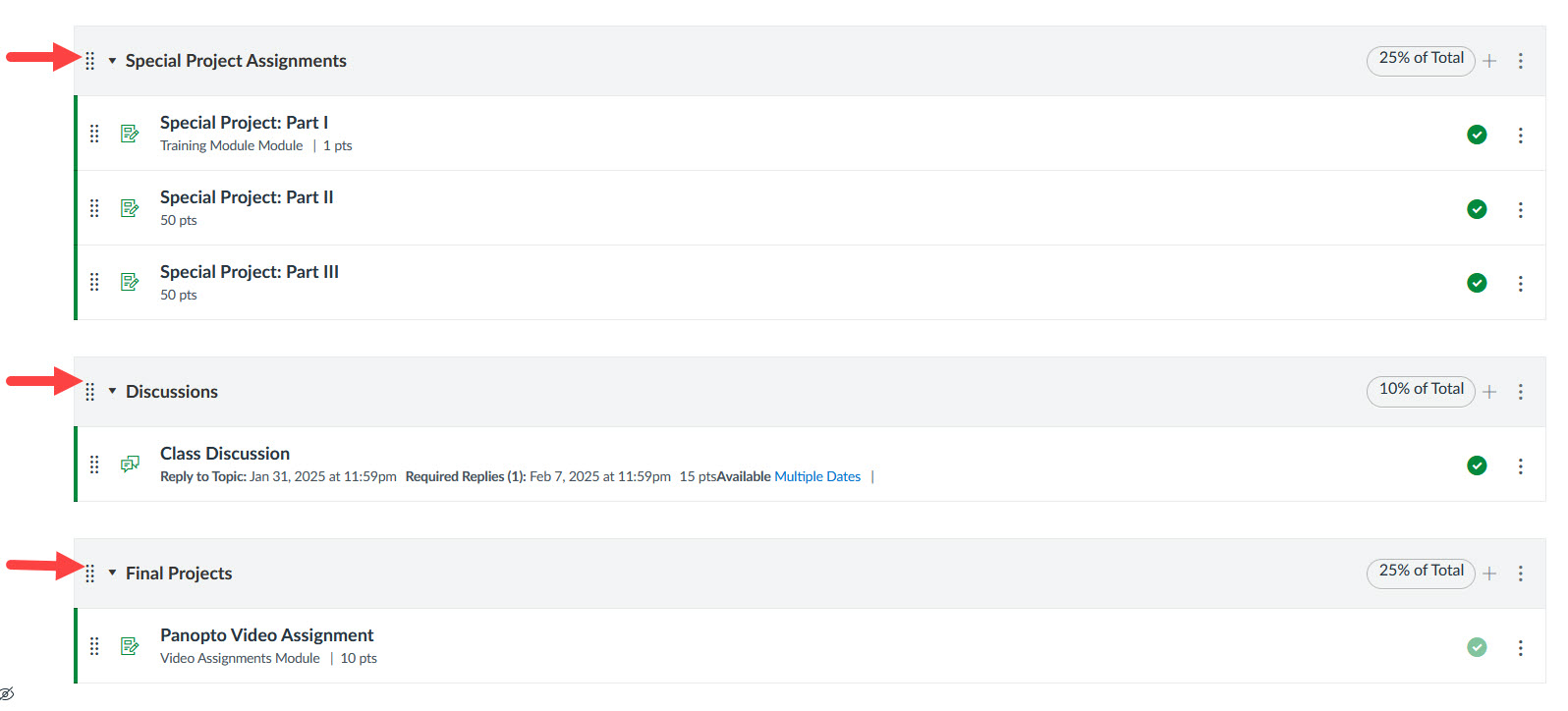
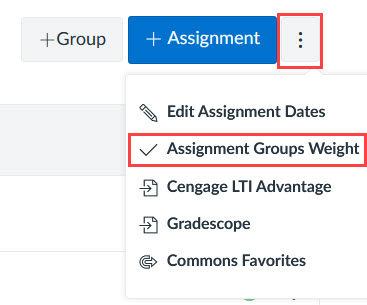
Once all assignment are in the proper groups, the weights can be added by clicking on the options menu at the top of the Assignments page and selecting Assignment Groups Weight.
The assignment groups and their weights will appear in the gradebook near the total grade column. The percentages will update as students submit the assignments.

Canvas Grade Posting Policy
The Grade Posting Policy setting in the grade book has been set to manually post grades, meaning grades will be hidden from students automatically. After grades have been entered in the grade columns, you must select to post grades in order for students to view them. The option to post grades can be found by opening the options menu in each grade book column.
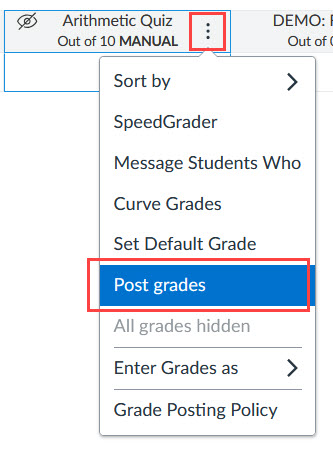
While the grades for an assignment are hidden, students will not be able to see or receive new notifications about the following:
- Their grade for the assignment
- Grade change notifications
- Submission comments
- Curving assignments
- Score change notifications
- Once grades are posted manually, students will be able to see their grades and receive notifications for the above.
Student Grade Summary
The setting for students to view running grade totals is turned off in your course by default. Please do not change this setting. The calculation of the total running grade does not account for unsubmitted late assignments, ungraded submitted assignments, or assignments not yet due; therefore, it can be misleading to students regarding their current grade in the course.
Additional Resources:
Assigning Different Due Dates for an Assignment
How to Use the Batch Edit Feature
Was this article helpful?
That’s Great!
Thank you for your feedback
Sorry! We couldn't be helpful
Thank you for your feedback
Feedback sent
We appreciate your effort and will try to fix the article