Submit an Assignment
With the new assignment enhancements, you must navigate to the bottom of the assignment page. The instructor will decide what type of submission will be required, and so some of the following submission types may be unavailable.
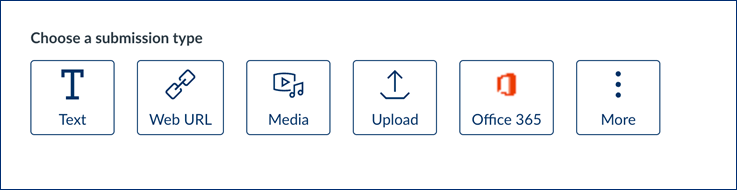
Text
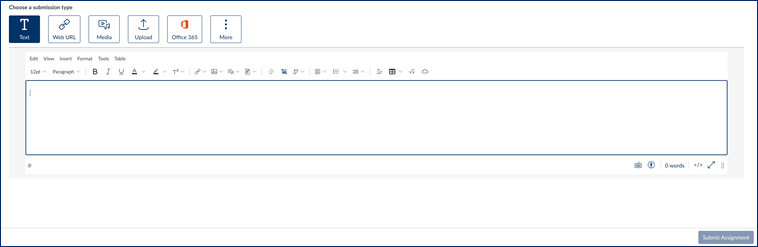
This submission type allows you to type out a response to the assignment immediately without having to go through a text editor. This submission type allows you to change the formatting of your text, as well as including links, various media, and other documents.
The blue submission button in the bottom right will be unavailable if the text box is blank, and any changes will be saved as a draft should you navigate away from the page.
Web URL

This submission type allows you to insert a website URL as your assignment. This is useful if you have created a shared link from a Google doc, published a blog post, or created other forms of publicly available content.
Media
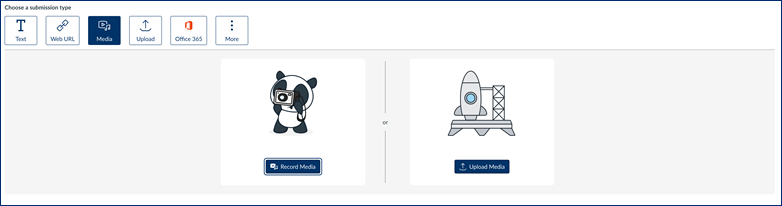
This submission type allows you to upload an image, audio, or video recording as an assignment.
Upload
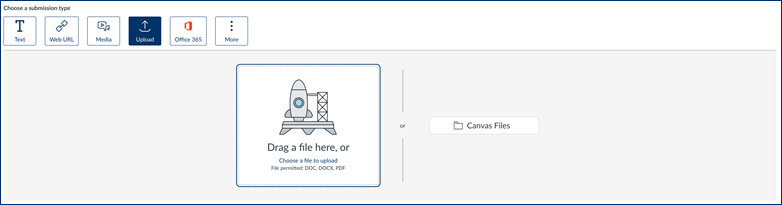
Office 365
This option allows you to choose a document you have created and saved to your online Office 365 account.
See Assignment Feedback
After your instructor has graded your assignment, the assignment submission will be replaced with the graded assignment. If your instructor has used any annotation tools to grade your assignment, you will see a preview of those annotations, notes, and highlighting. You can ask for clarification on any feedback by clicking the "Add Comment" button on the top right.
Clicking this button will open a window that displays previously submitted feedback, as well as allowing you to add comments to your submission.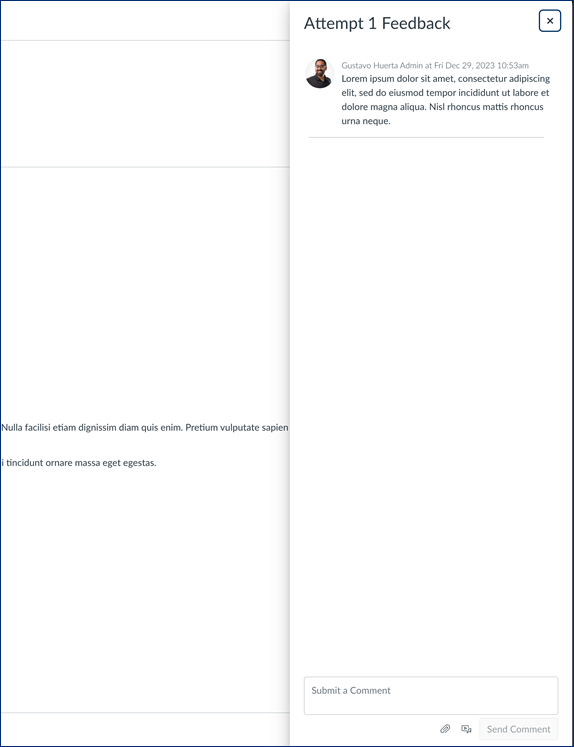
Was this article helpful?
That’s Great!
Thank you for your feedback
Sorry! We couldn't be helpful
Thank you for your feedback
Feedback sent
We appreciate your effort and will try to fix the article