Assigning Differentiation Tags

Created by Dee Woodard, Modified on Wed, 17 Dec, 2025 at 1:51 PM by Dee Woodard

Differentiation Tags are a new feature in Canvas that allows you to create custom sets of students within your course. Once applied, these tags enable you to personalize learning by controlling access to specific assignments, quizzes, pages, discussions, or modules. You can also vary due dates or availability windows for the different sets of students.

Whether you’re supporting accommodations, organizing clinical cohorts, or offering enrichment opportunities, Differentiation Tags provide a simple, flexible way to meet students where they are, all within a single course.

At this time, Differentiation Tags will not copy between Canvas courses or export with Canvas course packages.


How do I create, assign, or remove Differentiation Tags for students?

Only users enrolled in a course as a teacher or TA role can create, edit, or delete Differentiation Tags.

  1. In your Canvas course, navigate to the People section by selecting “People” in the left course navigation.
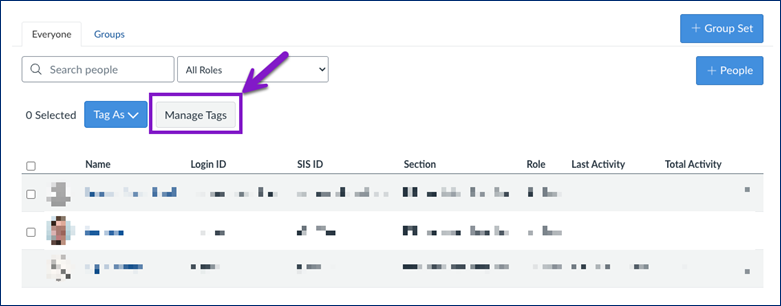
  2. Select the “Manage Tags” button.

Screenshot of the Canvas “People” page showing student information rows and a highlighted “Manage Tags” button, indicated by a purple arrow and box.

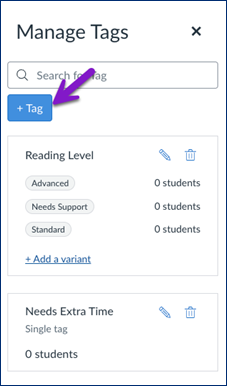
  1. Select the blue “Get Started” button or select the blue “+ Tag” button if this is not your first time using differentiation tags.
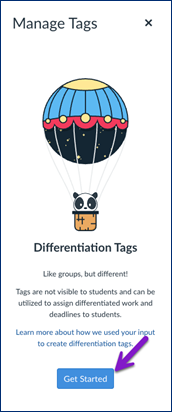
anvas “Manage Tags” screen displaying an illustration of a panda in a hot air balloon, with a title “Differentiation Tags,” explanatory text about tag use, and a blue “Get Started” button highlighted by a purple arrow.

Canvas “Manage Tags” panel displaying existing tags: a tag set titled “Reading Level” with variants “Advanced,” “Needs Support,” and “Standard,” and a single tag “Needs Extra Time,” each assigned to 0 students. A purple arrow points to the blue “+ Tag” button near the top.

Creating a Standalone Tag

  1. Enter the name for the tag (1) and then select the blue “Save” button (2).
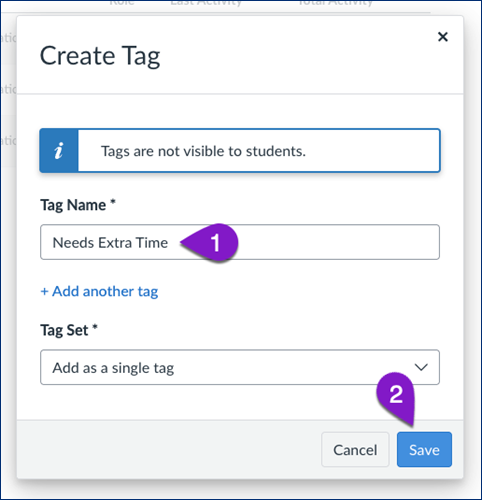
Canvas “Create Tag” popup window showing a tag named “Needs Extra Time,” with the Tag Name field labeled as step 1 and the blue “Save” button labeled as step 2. A notice at the top explains that tags are not visible to students.

Creating a Tag Set

  1. Enter the names for the tag variants in the set (1). Use the “+ Add another tag” button (2) to add more tags. Use the trash can next to the tag name to delete a tag. Enter a name for the tag set (3) and then select the blue “Save” button (4).
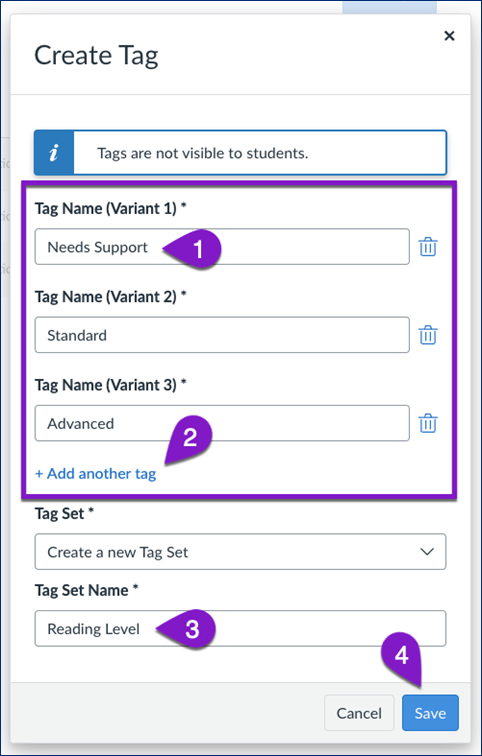
Canvas “Create Tag” window showing the creation of a tag set named “Reading Level” with three tag variants: “Needs Support,” “Standard,” and “Advanced.” Purple markers label the tag fields as steps 1 and 2, the tag set name as step 3, and the blue “Save” button as step 4. A banner at the top notes that tags are not visible to students.

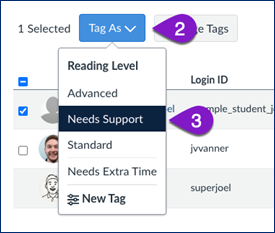
  1. To tag a students, check the box next to their name (1), select the blue “Tag As” button (2), and select the tag they should receive (3). Bold headings in the list indicate a tag set name (like “Reading Level” below). Repeat this process to add tags to other students, or add more tags to the same students.
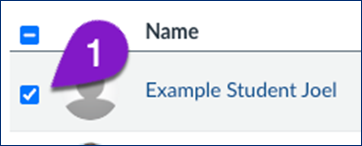
Row from a Canvas course “People” list showing a selected checkbox next to the user “Example Student Joel.” A purple label marked “1” points to the profile icon beside the student’s name.

Canvas interface showing a selected student row and the “Tag As” dropdown menu expanded. “Needs Support” under the “Reading Level” tag set is highlighted. Purple labels mark the “Tag As” menu as step 2 and the selected tag option as step 3.

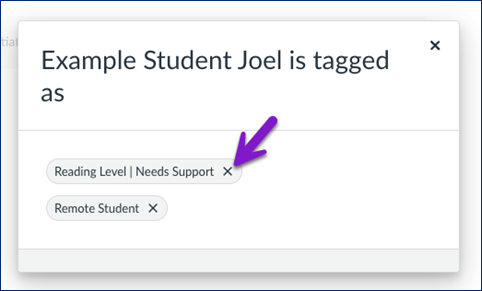
  1. Once a student has a tag, a tag icon will appear next to their name. Select the tag icon to view the tags associated with that student. To remove a tag from a student, select the “X” next to the tag.
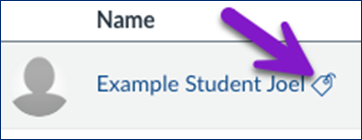
Canvas user row showing “Example Student Joel” with a purple arrow pointing to a tag icon next to the student’s name, indicating applied Differentiation Tags.

Popup window in Canvas displaying that “Example Student Joel is tagged as” with two applied tags: “Reading Level | Needs Support” and “Remote Student,” each with an “X” button to remove the tag.

How do I edit or delete Differentiation Tags from my course?

Only users enrolled in a course as a teacher or TA role can create, edit, or delete Differentiation Tags.

  1. In your Canvas course, navigate to the People section by selecting “People” in the left course navigation.
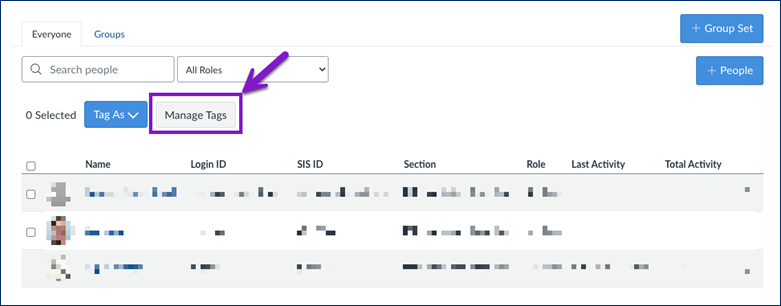
  2. Select the “Manage Tags” button.

Screenshot of the Canvas “People” page showing student information rows and a highlighted “Manage Tags” button, indicated by a purple arrow and box.

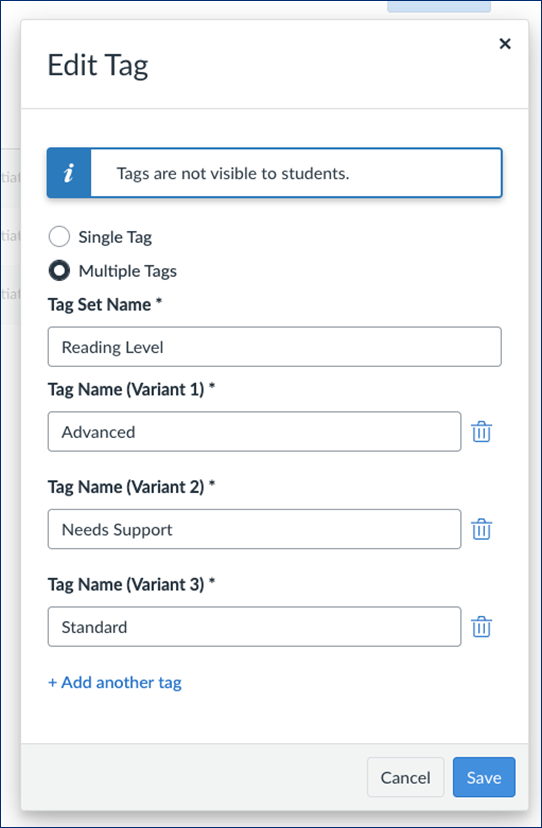
  1. Select the pencil icon to edit, or the trash can to delete, a tag or tag set.
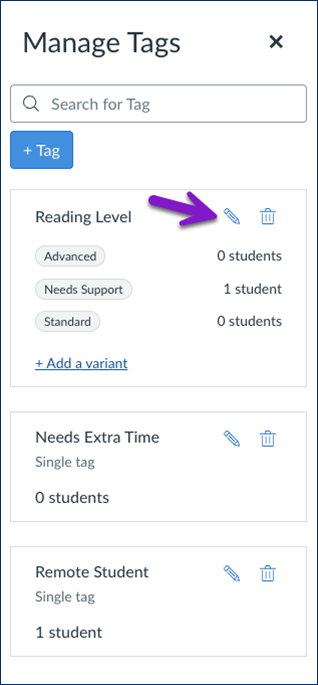
Canvas “Manage Tags” panel showing three tags: a tag set “Reading Level” with variants “Advanced,” “Needs Support” (assigned to 1 student), and “Standard,” plus single tags “Needs Extra Time” and “Remote Student.” A purple arrow points to the pencil (edit) icon next to the “Reading Level” tag set.

Canvas “Edit Tag” popup window with “Multiple Tags” selected. The tag set name is “Reading Level” and includes three variants: “Advanced,” “Needs Support,” and “Standard,” each with a trash icon to delete the entry. A blue “Save” button and a grey “Cancel” button appear at the bottom.

Selecting Differentiation Tags in the “Assign To” field:
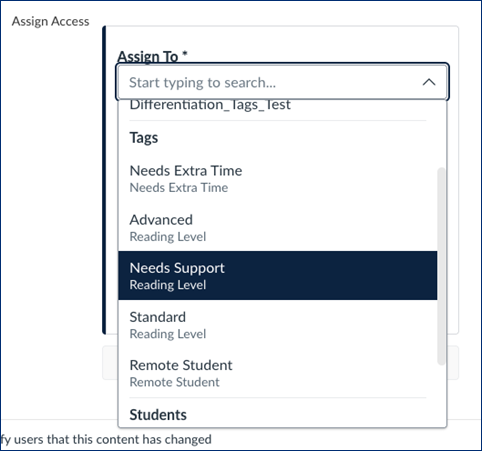
Canvas “Assign To” dropdown menu showing a list of Differentiation Tags including “Needs Extra Time,” “Advanced,” “Needs Support” (highlighted), “Standard,” and “Remote Student,” each grouped by tag set where applicable.

Selecting Differentiation Tags in the Gradebook:
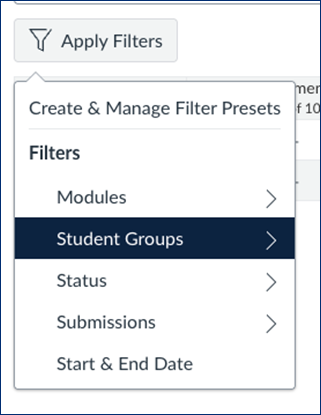
Canvas Gradebook filter menu with “Student Groups” selected under the Filters section. Other filter options include Modules, Status, Submissions, and Start & End Date.

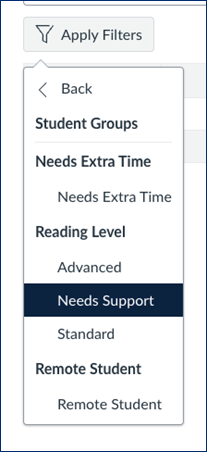
Canvas Gradebook filter dropdown expanded under “Student Groups,” showing Differentiation Tags: “Needs Extra Time,” “Reading Level” (with “Advanced,” “Needs Support” highlighted, and “Standard”), and “Remote Student.”


Was this article helpful?

That’s Great!

Thank you for your feedback

Sorry! We couldn't be helpful

Thank you for your feedback

Let us know how can we improve this article!

Select at least one of the reasons

Feedback sent

We appreciate your effort and will try to fix the article